1. Understand the comparison
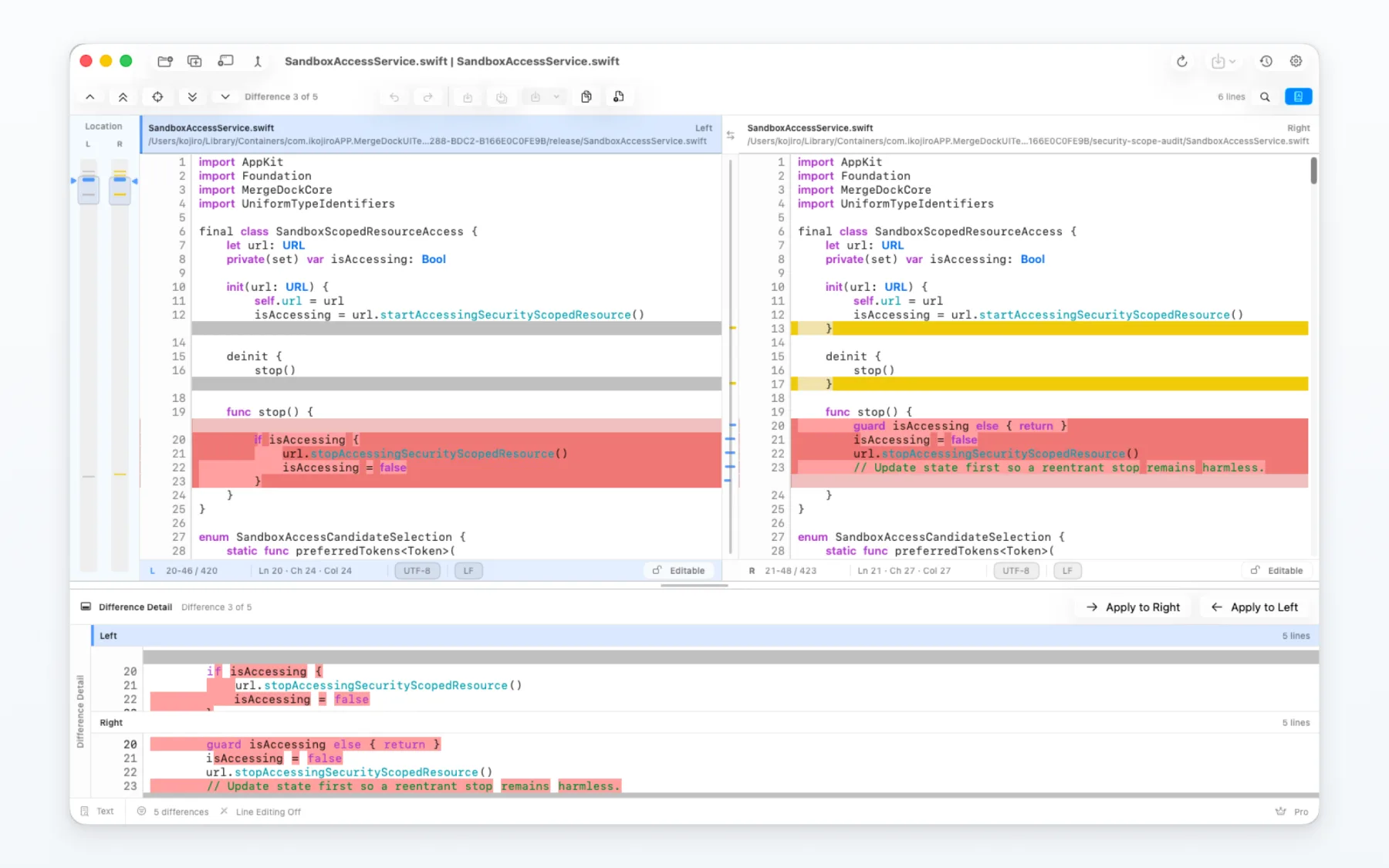
Comparison shows where two files differ. Merging is the step where you decide which content becomes the saved result.
MergeDock keeps review, editing and saving in one comparison workspace.
2. Prepare the inputs
- Make a copy of important files before you begin.
- Confirm which file is on the left and which is on the right.
- Allow access to the files you selected when macOS asks.
3. Review the differences
Check both the direction and the content of a change before applying it.
Use search, difference navigation and the overview to keep the surrounding context visible.
4. Apply and save selected changes
Check both the direction and the content of a change before applying it.
Save only after the result and destination are correct. A comparison can be reviewed without saving anything.
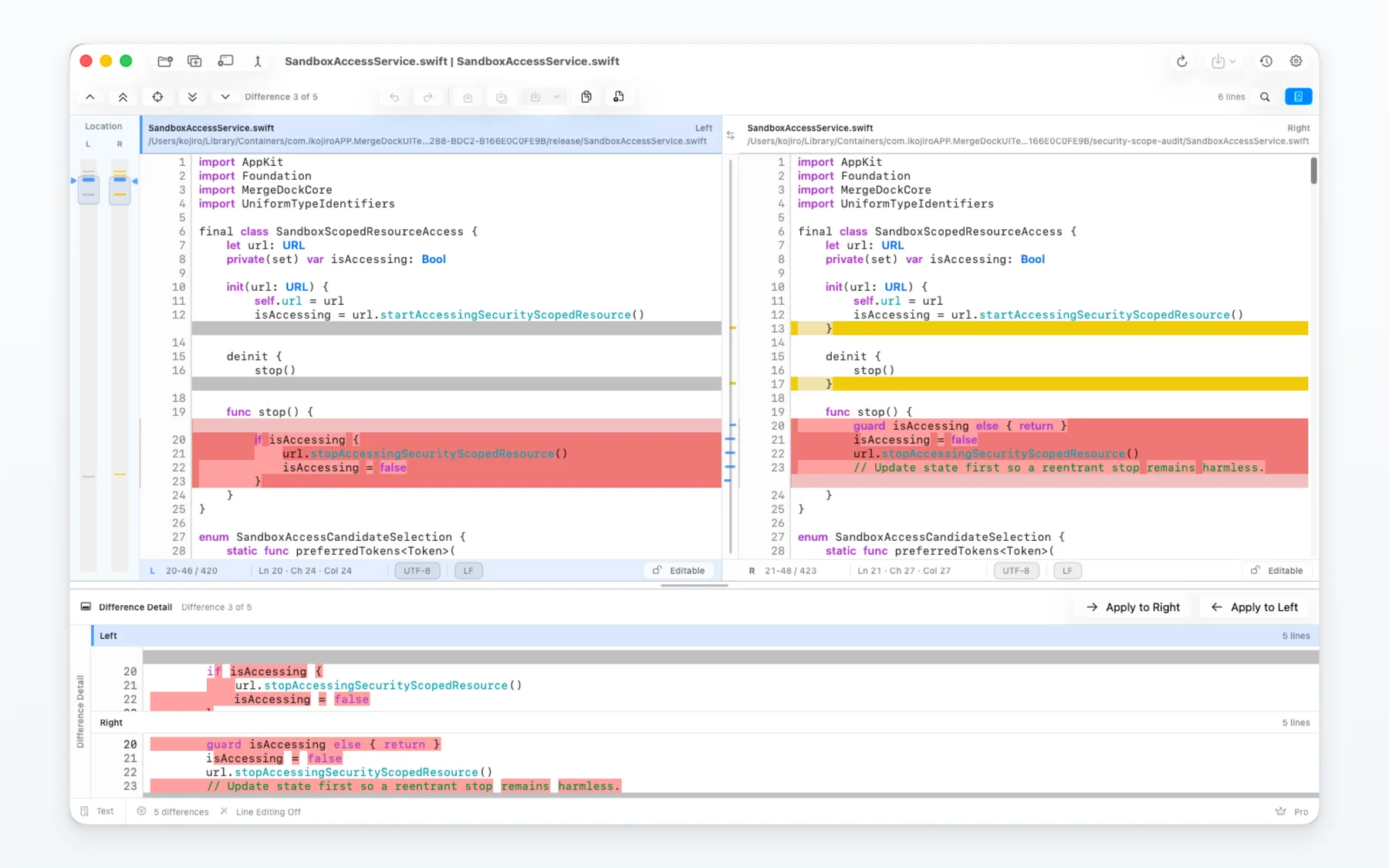
5. Example
Move through additions, deletions and changes without changing the originals.
6. Choose the right workflow
Use two-way comparison for two files. Use Git 3Way for BASE, LOCAL, REMOTE and MERGED roles. Use folder comparison when you need to review many items and a sync plan.
7. Limits and notes
- The app requires macOS 26 or later.
- File access and saving depend on macOS permissions and the destination you choose.
- Free and Pro availability follows the current in-app purchase screen.