1. Compare first
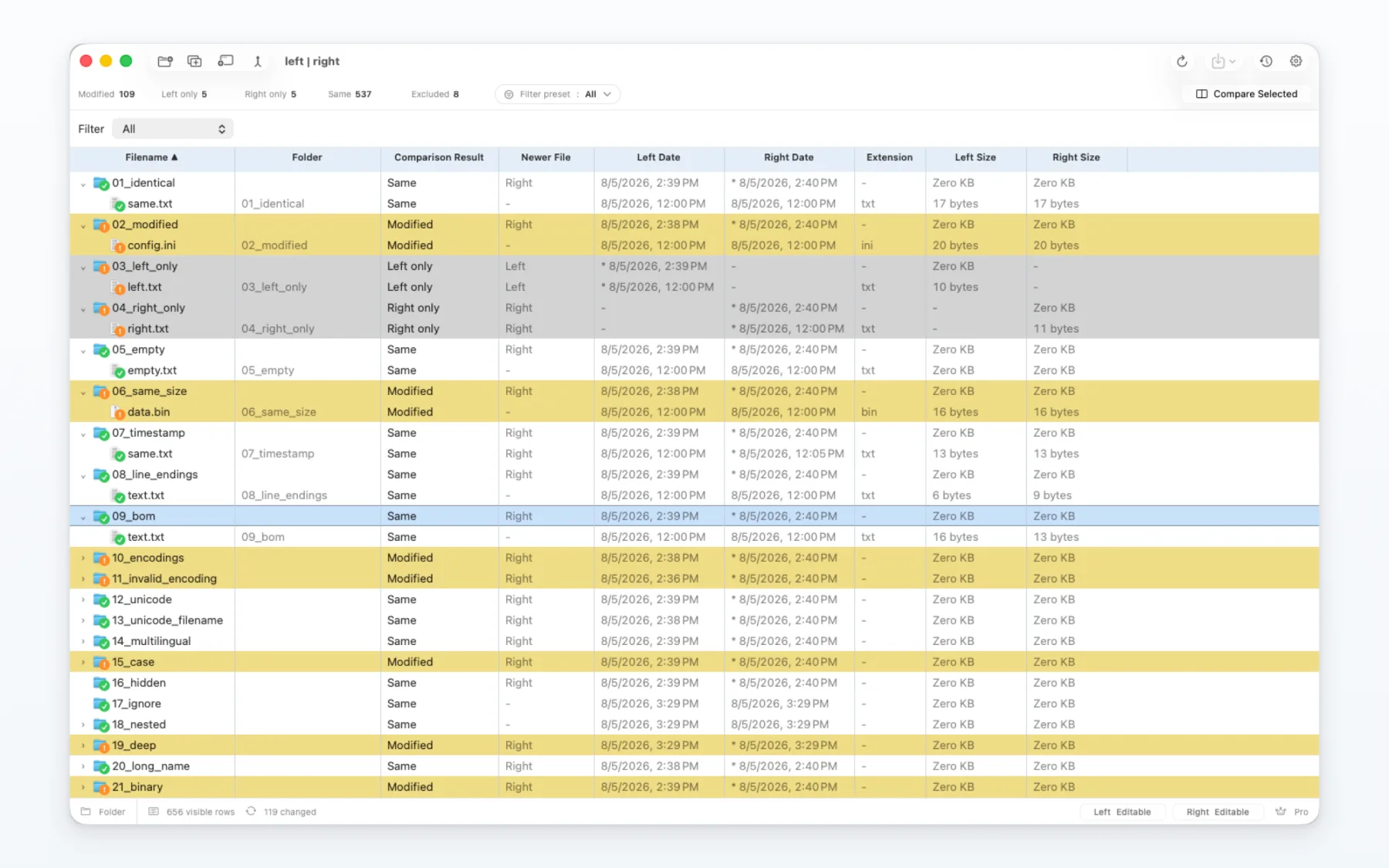
Choose the left and right folders, then review identical items, changes, left-only items and right-only items.
A comparison does not update files by itself.
2. Review the sync plan
Select the operations you want to inspect and confirm the direction before applying them.
- Copy and overwrite operations can affect existing files.
- Trash or removal operations need extra care.
- The preview describes a plan; it is not proof that the plan has run.
3. Execute and verify
Folder Sync execution requires Pro. Confirm the plan, run it, then compare the folders again and inspect the result.
Keep an appropriate backup of important data before you begin.
4. Example
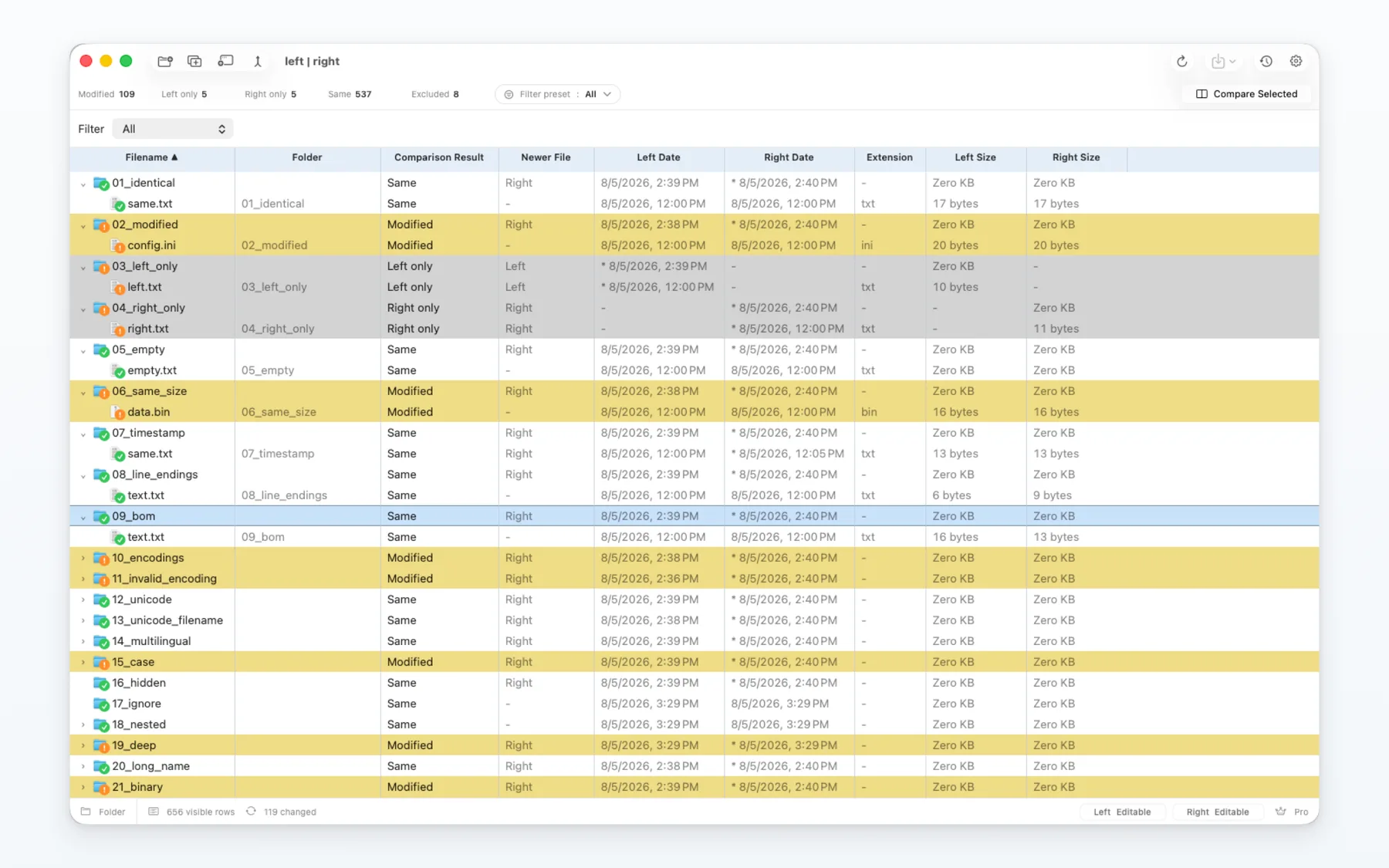
Use a disposable test folder to verify the four basic cases: same, changed, left-only and right-only.
Expected result
changed.txt is shown as changed; only-left.txt and only-right.txt remain on their respective sides.
5. Free and Pro
Free users can review folder differences and the planned operations. Executing Folder Sync is a Pro feature.
6. Limits and recovery
- Recovery data is not a promise of complete backup.
- The result depends on permissions, available storage and the selected destination.
- Do not treat a preview as a completed copy.
7. Choose the next workflow
Use the file guide to inspect one file in detail, or the Git guide to review repository inputs and conflicts.